Cloudways backup automatically saves the web files and databases of every application on a server to off-site storage, and a new server starts out with daily backups kept for one week. When I ran an on-demand backup, a full restore and a rollback myself on one application on a test server, the backup took about 30 seconds and the restore about 1 minute 30 seconds. Restores are done per application by picking a point in time, and deleted servers and applications can still be recovered from their remaining backups within 14 days.
TOC
5mn read
TOC
5mn read
View more
1️⃣ Types of Cloudways backups
Cloudways backups come in two kinds: server backups, which run automatically per server, and application backups, which save one application whenever you want. A server backup holds the web files and databases of every application on that server, while an application backup includes only the [public_html] and [private_html] folders and the database.
Server settings and logs are not included in backups
BackupsRestore→←
☁️ Off-site storage
Server backupA + B · all apps
App backupOne app
Scheduled under the server's [Backups] (new servers: daily, kept 1 week); every application on the server is saved as one point in time.
Clicking [Take Backup Now] in the application's [Backup and Restore] saves only that application; it took about 30 seconds on the test server.
Even if you pick a server backup point (A + B), the restore happens in the application's [Backup and Restore]; only the chosen application A goes back to that point and B stays as it is.
Restoring to an application backup point takes only A back to that point; on the test server, [Complete Restore] took about 1 minute 30 seconds.
Files outside those two folders are not backed up even if they sit inside the application folder, so keep files you do not want public on the web in [private_html].
A backup is first created on the server and then moved to off-site storage, after which the copy on the server is deleted. The setting that keeps one latest copy on the server disk is [Local Backups].
2️⃣ Setting server backup frequency and retention
Server backups are set in the server menu under [Backups]: change the frequency, retention and scheduled time, then click [Save Changes]. The scheduled time is in UTC, so convert it to your own time zone (Korea, for example, is UTC+9).
⏰Scheduled 16:49 UTC · Korea 01:49No scheduled time for intervals under a day
💽Local Backups · when on, keeps the latest 1 on the server disk (off by default)
Backups→
☁️ Off-site storage
Retention 1 week4 weeks
● = 1 restore point · every 12 hoursevery dayevery 7 days (added)
New servers start at daily · 1 week; frequency can be 1, 3, 6 or 12 hours or 1–7 days, and retention 1–4 weeks. A shorter frequency or longer retention means more restore points.
A shorter backup interval is not automatically safer. A 1- or 3-hour interval puts heavy load on the server, and if the next run comes before the previous backup finishes, it can be skipped or fail; Cloudways recommends an interval of 12 hours or more for servers with disks over 100GB.
The first backup is a full backup and later ones are incremental, holding only changed files, while the database is backed up in full every time. Off-site storage is billed at $0.033 per GB for each server, and longer retention means more stored backups and more space. The test server showed 38MB of off-site backup space, which comes to less than 1 cent a month.
To back up right away outside the schedule, click [Take Backup Now]; this backup is also added to the list of restore points.
3️⃣ Restoring an application
Even though backups pile up per server, restores happen one application at a time. In the application menu's [Backup and Restore], pick a restore point, click [Restore Application Now], choose the restore scope and click [Proceed].
A backup made with [Take Backup Now] on the application screen was added to the restore point list in about 30 seconds. A [Complete Restore] to that point finished about 1 minute 30 seconds later.
Undo with [Roll Back] · auto-deleted after 24 hours
Complete Restore brings back both web files and database; choose it when you do not know the cause, when even the admin screen will not open, or after a security breach.
Web Files restores only the web files; choose it when only the files are the problem. [Roll Back] also undoes only the web files.
Database restores only the database; choose it when only the database is the problem.
Restore points are shown in UTC, and a restore needs free disk space of at least 2.5 times the application data. An application with 100MB of data needs at least 250MB free.
The state just before the restore is backed up automatically and can be brought back with [Roll Back]; if you restored only the web files, the rollback also covers only the web files. If the result is right, delete the pre-restore backup with [Delete]; even if you leave it, it is removed automatically after 24 hours. The pre-restore backup works like a save point in a game.
While the pre-restore backup exists, [Restore Application Now] is disabled, so to restore to another point you first [Roll Back] or [Delete]. [Roll Back] finished within 20 seconds and the restore button became active again.
4️⃣ Cloudways backup menu paths
In the simulator below you can follow, in order, the menus you click in Cloudways — from server backup settings to restoring an application, [Roll Back] and downloading a local backup.
In the server menu's [Backups], choose the scheduled time, [Backup Frequency] and [Backup Retention], then click [Save Changes]. [Save Changes] stays disabled until you change a value, and the scheduled time is in UTC.
📍my-server›Backups›Take Backup Now
Server backup now
Clicking [Take Backup Now] lower on the same screen backs up every application on the server, and while it runs the server card in the server list shows [Taking Backup]. If [Local Backups] is on, this backup is also saved to the server's [local_backups] folder.
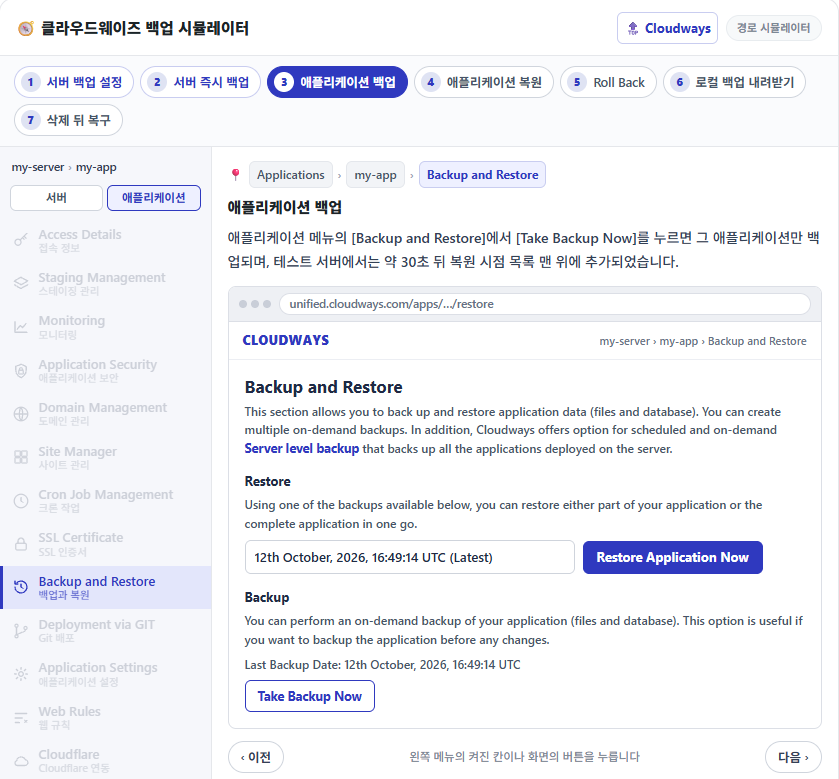
📍Applications›my-app›Backup and Restore
Application backup
Clicking [Take Backup Now] in the application menu's [Backup and Restore] backs up only that application; on the test server it appeared at the top of the restore point list after about 30 seconds.
📍my-app›Backup and Restore›Restore Application Now
Application restore
Pick a restore point and click [Restore Application Now] to open the window for choosing the restore scope. [Proceed] first backs up the current state and then restores; a complete restore took about 1 minute 30 seconds.
📍my-app›Backup and Restore›Roll Back
Roll Back
While the pre-restore backup exists, [Restore Application Now] is disabled; undo with [Roll Back] or remove it with [Delete]. Even if you do neither, it is deleted automatically after 24 hours.
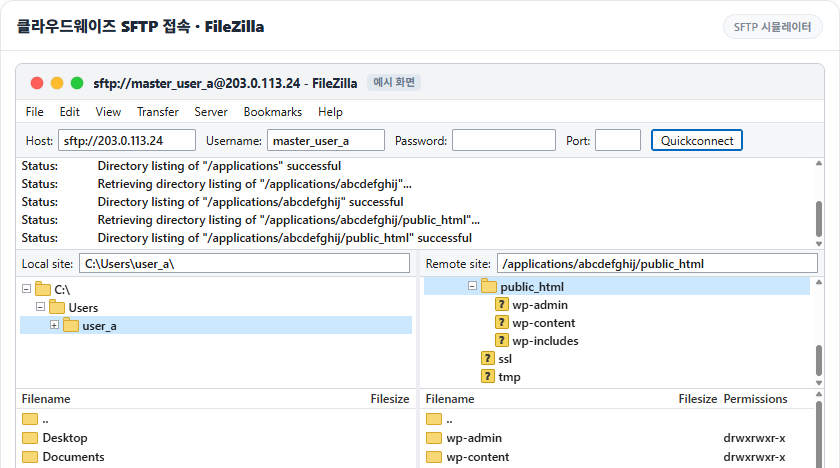
On a server with [Local Backups] on, connect via SFTP and download [backup.tgz] from the [local_backups] folder; only the most recent backup stays on the server.
📍Flexible›Applications›Recover Application
Recover after deletion
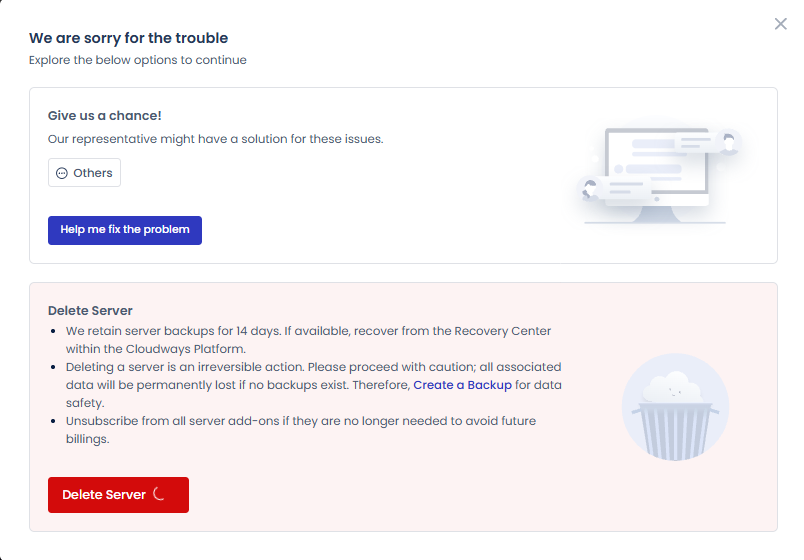
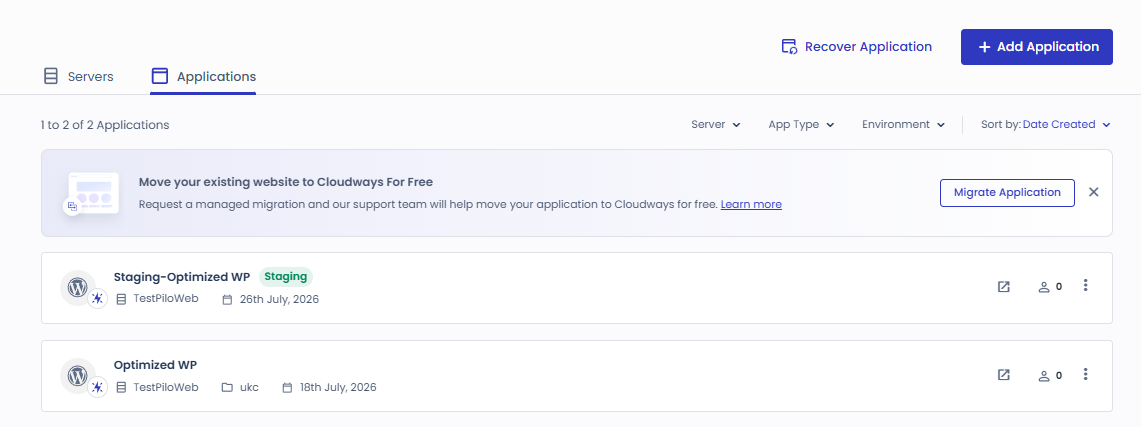
A deleted application is recovered from [Recover Application] at the top right of the [Applications] list under [Flexible], and a server from [Recover Server] in the [Servers] list. The recovery screen has two tabs: [Deleted Servers] and [Deleted Applications].
unified.cloudways.com/server/…/backup
✓
CLOUDWAYSmy-server › Backups
Backups
Manage your Backup preferences here.
Backup Settings
Schedule Time
UTC
Local Backups
🗑
Off-site Backup Size
Current backup size: 38 MB Last updated: 12th October, 2026
On-Demand Backup
You can perform an on-demand backup of your server. If you have enabled Local Backups, this will additionally create a downloadable copy of all the applications present on your server.
unified.cloudways.com/server
✓
CLOUDWAYSFlexible › Servers
Creating Your Backup
Servers
my-server203.0.113.10
Taking Backup — Backup in progress. Please wait.
✓
unified.cloudways.com/apps/…/restore
CLOUDWAYSmy-server › my-app › Backup and Restore
Backup and Restore
This section allows you to back up and restore application data (files and database). You can create multiple on-demand backups. In addition, Cloudways offers option for scheduled and on-demand Server level backup that backs up all the applications deployed on the server.
Restore
Using one of the backups available below, you can restore either part of your application or the complete application in one go.
Backup
You can perform an on-demand backup of your application (files and database). This option is useful if you want to backup the application before any changes.
Last Backup Date: 12th October, 2026, 16:49:14 UTC
Application backup in progress. This may take a few minutes…
unified.cloudways.com/apps/…/restore
Restore Backup for my-app
You have selected to restore the backup from
Complete RestoreRestore everything including all files and database
Web FilesRestore webfiles only
DatabaseRestore database only
We will create a backup before restore so you can rollback at anytime. Are you sure you wish to proceed?
Restore Application in progress, this may take few minutes…
✓
unified.cloudways.com/apps/…/restore
CLOUDWAYSmy-server › my-app › Backup and Restore
Backup and Restore
This section allows you to back up and restore application data (files and database). You can create multiple on-demand backups. In addition, Cloudways offers option for scheduled and on-demand Server level backup that backs up all the applications deployed on the server.
Restore
Using one of the backups available below, you can restore either part of your application or the complete application in one go.
Roll Back
A local copy of your application was saved before you restored your application using the restore feature. In order to use the restore feature again, you will have to either delete this local copy or roll your application back to the state it was before you restored it.
This local copy is kept for the first 24 hours only, after which it is automatically removed.
Delete
Are you sure you want to rollback your Application?
Your Application rollback is under process …
Backup
You can perform an on-demand backup of your application (files and database). This option is useful if you want to backup the application before any changes.
Last Backup Date: 12th October, 2026, 16:49:14 UTC
Click a highlighted item in the left menu or a button on the screen
5️⃣ Downloading a backup
To download backup files to your computer, first turn on the server's [Local Backups]. Turn on [Local Backups] under [Backups] and click [Save Changes]; from the next backup on, copies of the web files and database are created in [local_backups] in the application folder.
To download right away, back up every application on the server with [Take Backup Now] under the server's [Backups], then connect via SFTP and copy the file from [/applications/application folder/local_backups]. Only the most recent backup stays on the server, so if you backed up at 4:00 p.m. and 4:35 p.m., only the 4:35 copy can be downloaded.
On a 1GB test server, turning on [Local Backups] and clicking [Take Backup Now] created one [backup.tgz] file (about 37MB) in the [local_backups] folder about a minute later.
For how to connect via SFTP, see How to connect to Cloudways via SFTP & SSH step by step. Deleting the local backup left on the server does not affect the off-site backups.
6️⃣ Recovering a deleted server or application
Backups of deleted servers and applications are kept for 14 days after deletion, so they can be recovered within that period. An application is recovered from [Recover Application] at the top right of the [Applications] list under [Flexible], choosing the same server, another server or a new server. A server is recovered from [Recover Server] in the [Servers] list.
It is easy to assume a recovery brings things back at the same address as before, but a recovered application is treated as a new application with a new temporary URL, and a recovered server gets a new IP. After recovery, check the domain's A record, the SSL certificate and mail settings such as SMTP again.
A recovered server can only be the same size or larger than before, the database type (MariaDB or MySQL) cannot be changed, and staging applications are not recovered. Servers deleted for non-payment also lose their backups for good after 14 days.
🔢 FAQ & Recommended Content
Retention in the Cloudways dashboard is 4 weeks at most. To keep backups longer, connect SnapShooter, which DigitalOcean acquired, and store them in external storage such as Amazon S3 or DigitalOcean Spaces.
No. Points saved by a server backup are also restored from the application's [Backup and Restore]; only the application you pick goes back to that point, and the other applications on the same server stay as they are. To bring back a single deleted application, use [Recover Application].
Backups use server resources, so Cloudways recommends scheduling them for a time with few visitors. The scheduled time is in UTC.
☁️Recommended Cloudways content21 Posts · 2 Tools
🗂️ Running Cloudways
📄 What Is Cloudways📄 Signup and basic setup📄 Domain connection📄 SSL setup
📋 Server & Application📄 Admin login📄 Staging Management📄 Billing · Pricing📄 Email · SMTP add-on📄 MCP · AI Server Management📄 SFTP and SSH Access📄 Migration📄 Backup📄 Vertical Scaling
📋 Hosting Comparison Top 7📄 What is cloud hosting📄 What is managed hosting📄 Web Hosting Costs📄 Cloudways for Small Businesses📄 Cloudways WooCommerce📄 Cloudways Alternatives
ℹ️ Affiliate Disclosure This site's content contains affiliate links. When a visitor buys a product or service through one of them, the site receives a commission from the seller. The amount the buyer pays(it goes down during event discounts ↓)does not go up. Posted prices, discounts, and stock reflect the time of writing and may differ, so confirm with the seller before buying. Products are chosen and reviewed by our own standards, and commissions do not affect the order or content of reviews.