Cloudways Vertical Scaling is the feature in the server management screen that increases CPU, RAM, and disk while keeping your current server and data. Comparing the size selection screen of a Vultr Seoul 1 GB server with the official help showed that whether you can scale down differs by provider, so this post lays out what to check before scaling up and how to scale down by cloning.
TOC
3mn read
TOC
3mn read
View more
1️⃣ Cloudways Vertical Scaling: The Menu That Upgrades Your Current Server's Specs
Vertical Scaling is not a migration to a new server; it only increases the specs of your current server in the same data center region. Applications and settings stay as they are.
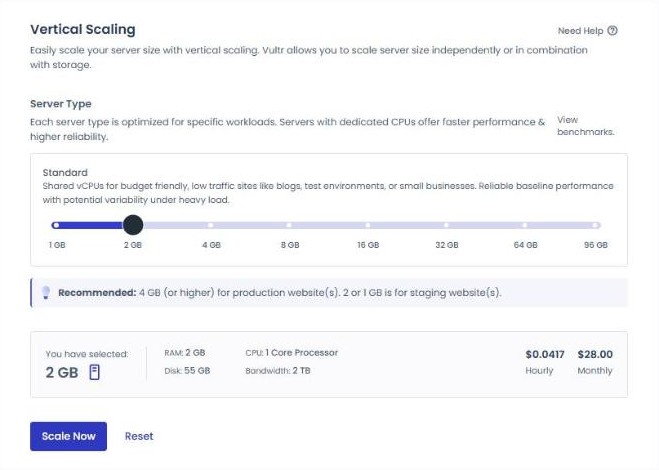
The menu is under [Vertical Scaling] on the left after you select a server in [Servers]; choosing a size on the slider shows the specs, the hourly rate, and the monthly price. When 2 GB is selected, a recommendation also appears saying production sites should use 4 GB or more and that 1 GB and 2 GB are for staging sites.
You might expect CPU to grow along with RAM, but selecting 2 GB on a Vultr Standard 1 GB server leaves the CPU at 1 core. It shows 2 GB of RAM, a 55 GB disk, and 2 TB of transfer, and since the Standard server screen has no option to keep the disk as is, the disk grows too.
DigitalOcean lets you choose between increasing only CPU and RAM or the disk as well, while on Linode CPU, RAM, and disk are bundled and grow together. AWS and Google Cloud: the application disk and the database disk are increased separately, and the OS disk is fixed at 25 GB.
2️⃣ Cloudways Server Scaling Steps and Downtime
Even though data and settings are left untouched, the server restarts while the size changes and the site is briefly unavailable, so follow the steps below during a low-traffic period.
In [Backups], click [Take Backup Now]: On-demand backup creation
Select a size in [Vertical Scaling] and check the price
Click [Scale Now]
Check the downtime and limitations in the confirmation dialog, then click [Proceed]
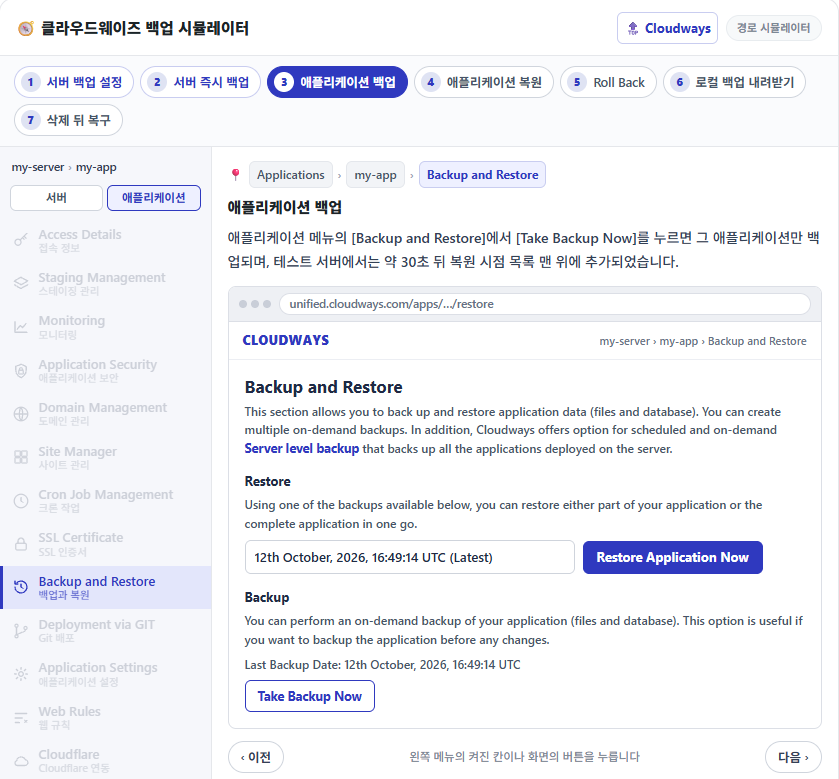
Before changing the size, click [Take Backup Now] under [Backups] in the server menu to back up every application on the server.
📍Flexible›Servers
Backup in progress
While the backup runs, the server card in the server list shows [Taking Backup], and a completion notification appears when it finishes.
📍Flexible›Servers›my-server›Vertical Scaling
Size selection
Selecting a size on the slider updates the specs and price and enables [Scale Now]; clicking [Reset] returns to the current size.
unified.cloudways.com/server/…/backup
CLOUDWAYSmy-server › Backups
Backups
Manage your Backup preferences here.
Backup Settings
Schedule Time
UTC
Local Backups
On-Demand Backup
You can perform an on-demand backup of your server. If you have enabled Local Backups, this will additionally create a downloadable copy of all the applications present on your server.
unified.cloudways.com/server
✓
CLOUDWAYSFlexible › Servers
Creating Your Backup
Servers
my-server203.0.113.10
Taking Backup — Backup in progress. Please wait.
unified.cloudways.com/server/…/vertical-scaling
CLOUDWAYSmy-server › Vertical Scaling
Vertical Scaling
Need Help ⓘ
Easily scale your server size with vertical scaling. Vultr allows you to scale server size independently or in combination with storage.
Server Type
Each server type is optimized for specific workloads. Servers with dedicated CPUs offer faster performance & higher reliability.
View benchmarks.
Standard
Shared vCPUs for budget friendly, low traffic sites like blogs, test environments, or small businesses. Reliable baseline performance with potential variability under heavy load.
💡Recommended: 4 GB (or higher) for production website(s). 2 or 1 GB is for staging website(s).
Click an enabled item in the left menu or a button on the screen.Clicking [Proceed] in the confirmation dialog starts the resize.
Once started, the operation cannot be canceled, and the time it takes grows with the disk space in use, so it can run longer than the estimate shown at first.
3️⃣ Scaling Down: Vultr and Linode Downgrade by Cloning
Vultr and Linode servers cannot be downgraded in place after scaling up. To scale down, create a smaller server with [Clone Server] from the ⋮ menu in the [Servers] list, point the domain to the new server's IP, and then delete the original server.
🧭 Scaling up and down by provider
Explainer diagram
☁️ Provider
📈 Scaled resources
↘️ Scale down
🖥️ Original size
CPU·RAMDisk
Scale up→
🖥️ Scaled-up size
CPU·RAM ↑Disk Unchanged↑
↩️ On the same serverScale down in place
🧬 To a cloned new serverClone at a smaller sizePoint the domain to the new IPDelete the original server
DigitalOcean increases only CPU and RAM, or the disk as well when you turn on the toggle.
On a Vultr Standard server, CPU, RAM, and disk grow together; there is no option to pick only CPU and RAM.
On Linode, CPU, RAM, and disk are bundled and grow together.
AWS and Google Cloud increase CPU and RAM, and the application disk and database disk are increased separately.
If only CPU and RAM were increased, you can go back down to the size the server was created with on the same server, but not below it.
If the disk was increased as well, it cannot be reduced in place, so you move to a new server cloned at a smaller size.
On Vultr the increased size stays, so you move to a new server cloned at a smaller size and then delete the original server.
On Linode, too, the increased size stays, so you move to a new server cloned at a smaller size and then delete the original server.
AWS and Google Cloud can reduce CPU and RAM on the same server.
CPU and RAM can be reduced on the same server, but an enlarged disk only shrinks by moving to a cloned new server.
On DigitalOcean, if only CPU and RAM were increased you can return to the size the server was created with, but if the disk was increased too, cloning is required to shrink. AWS and Google Cloud can reduce CPU and RAM, and cloning is needed only to shrink an enlarged disk.
To scale up only during traffic peaks and then go back, DigitalOcean's CPU·RAM-only scaling or AWS·Google Cloud are suitable; Vultr and Linode are not.
On Vultr, switching a Standard server to High Frequency is also done by cloning rather than resizing. Within the Advanced plan, switching between General Purpose and CPU Optimized can be done with Cross Scaling, which keeps the same server and IP. Even then, the disk does not shrink.
4️⃣ Charges After Changing Server Capacity
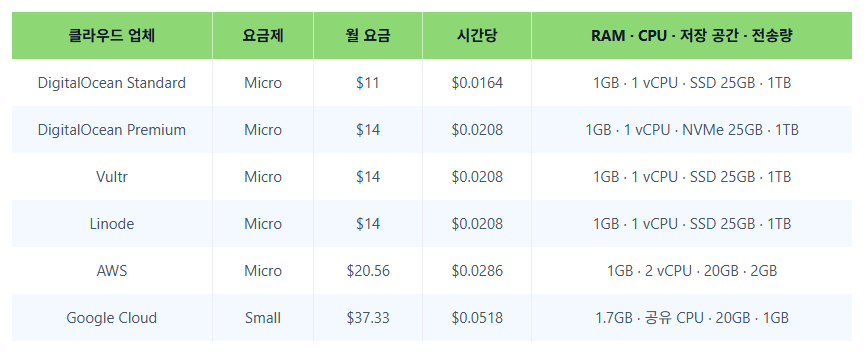
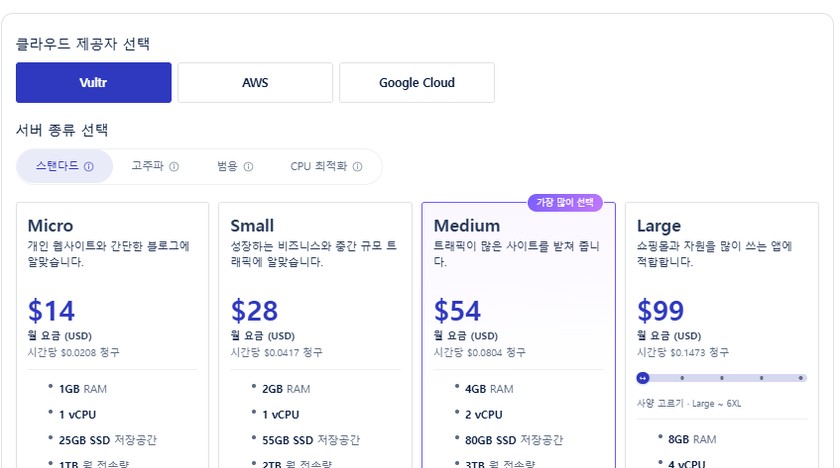
For Vultr Seoul, a 1 GB server costs $0.0208 per hour with a monthly cap of $14, and a 2 GB server $0.0417 per hour with a monthly cap of $28. The new rate is billed hourly from the moment the size changes.
If you scale from 1 GB to 2 GB mid-month, that month's bill is the hours at 1 GB plus the hours at 2 GB, each at its hourly rate. When scaling down by cloning, both servers are billed until you delete the original server.
5️⃣ When to Scale: Decide from the Monitoring Graphs
Even when CPU and memory usage is high or worker shortage warnings pile up, it is not yet time to scale up the server. On a server running Nginx and Apache, a php-fpm max_children warning, once traced, showed that the requests filling the workers were bots, scanners, and cache preloading rather than visitors.
In the Cloudways server's [Monitoring] › [Details], find the times when CPU usage rose and free memory dropped. Scale up when the access log in the application's [Monitoring] › [Logs] at those times coincides with a rise in visitors.
🔢 FAQ & Recommended Content
A free trial account cannot scale up a server or create a larger one. Register payment details, add funds to switch to a full account, and then proceed.
Selecting a size on the slider only shows the specs and pricing; the resize starts only after you click [Scale Now] and then [Proceed] in the confirmation dialog. Clicking [Reset] before confirming returns to the original selection.
For DigitalOcean, the official help describes adding Block Storage instead of scaling up the whole server. For AWS and Google Cloud, you increase only the disk in the disk tabs of [Vertical Scaling]; there are two tabs, [Disk Size for Application] and [Disk Size for Database].
☁️Recommended Cloudways content21 Posts · 2 Tools
🗂️ Running Cloudways
📄 What Is Cloudways📄 Signup and basic setup📄 Domain connection📄 SSL setup
📋 Server & Application📄 Admin login📄 Staging Management📄 Billing · Pricing📄 Email · SMTP add-on📄 MCP · AI Server Management📄 SFTP and SSH Access📄 Migration📄 Backup📄 Vertical Scaling
📋 Hosting Comparison Top 7📄 What is cloud hosting📄 What is managed hosting📄 Web Hosting Costs📄 Cloudways for Small Businesses📄 Cloudways WooCommerce📄 Cloudways Alternatives
ℹ️ Affiliate Disclosure This site's content contains affiliate links. When a visitor buys a product or service through one of them, the site receives a commission from the seller. The amount the buyer pays(it goes down during event discounts ↓)does not go up. Posted prices, discounts, and stock reflect the time of writing and may differ, so confirm with the seller before buying. Products are chosen and reviewed by our own standards, and commissions do not affect the order or content of reviews.