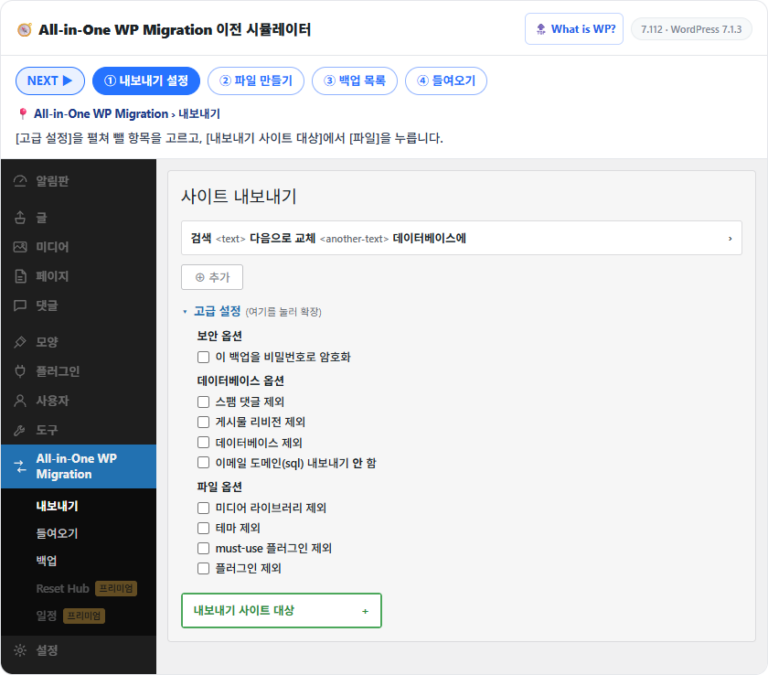
When creating a WordPress blog, once installation is done you set the language, basic settings, theme and plugins in turn on the admin screen (wp-admin). Based on the WordPress 7.1.3 admin screen, we split this setup into seven steps and linked each step to a simulator article where you can click through the screens yourself and to a settings article.
TOC
2-minute read
TOC
2-minute read
View more
1️⃣ Steps to create a WordPress blog
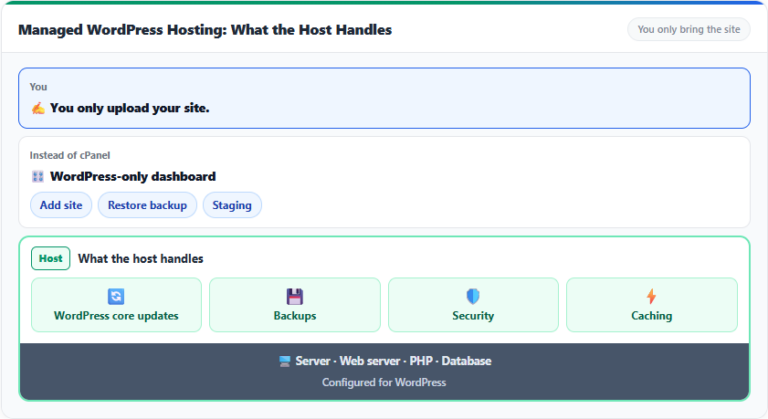
Domain registration, hosting signup and WordPress installation follow the same steps for a blog and a website. You can follow this preparation screen by screen in creating a WordPress website.
When installation is done and you log in to the admin screen for the first time, WordPress initial setup begins. Set the basic settings, theme and plugins before writing your first post, and check updates, Site Health and backups regularly while you write.
2️⃣ Accessing the WordPress admin page
Open the admin screen by adding [/wp-admin] after the site address. If you are not logged in, you go to the login screen, and entering the username and password you made during installation opens the Dashboard.
Unless you are on a shared computer, check [Remember Me] to stay logged in for 14 days. To see the screen each left menu opens after login, click the menus one by one in the simulator of WordPress dashboard settings.
↪️ Settings menu, permalinks and admin screen language
The blog's basic information is set in the left Settings menu. The seven screens of the Settings menu can mostly stay at their defaults, and when opening a blog, check the General and Permalinks screens first.
On the General screen, set the site title and time zone. If you run the blog alone, leave [Anyone can register] unchecked.
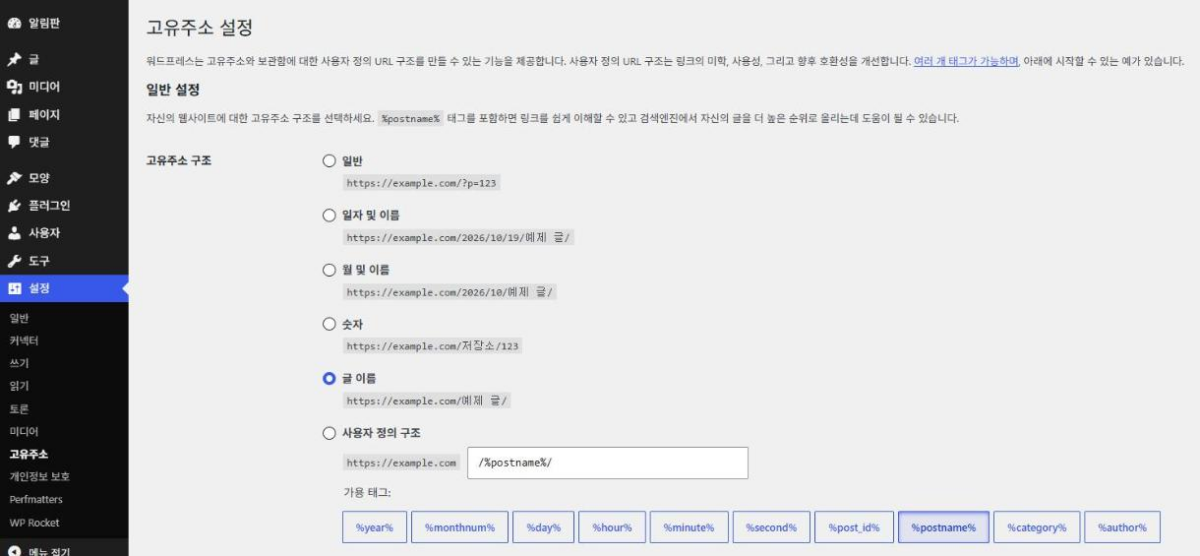
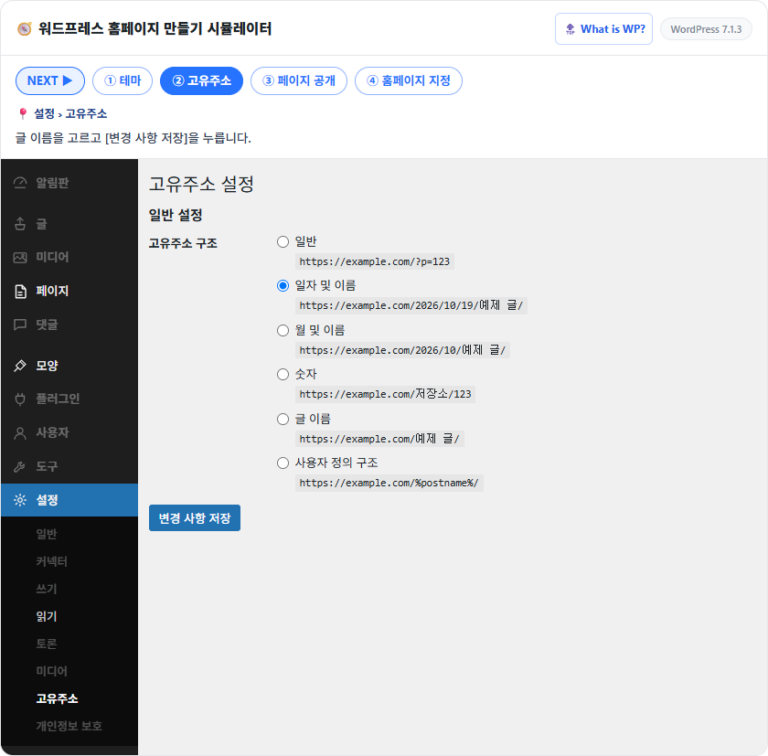
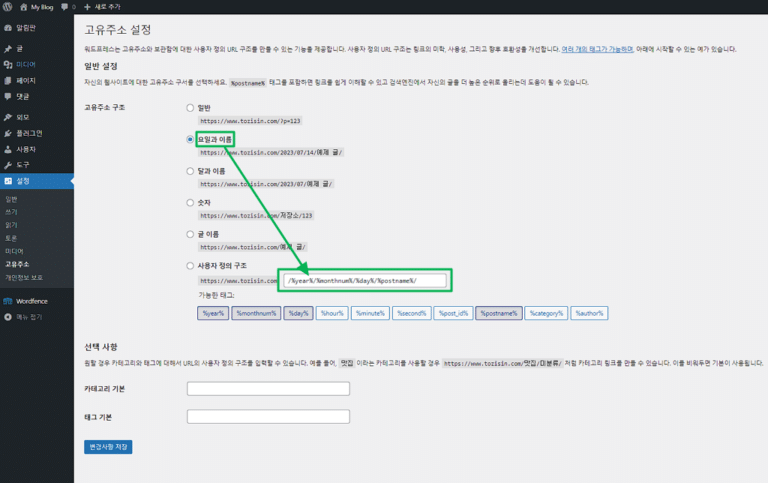
On the Permalinks screen, change the post address structure to [Post name] before writing your first post.
Choosing [Post name] changes post addresses so the post title comes right after the domain, and it takes effect only when you click [Save Changes].
The admin screen language can be set per account, separately from the site language, so you can keep the visitor-facing language and use another language only on the admin screen.
4️⃣ WordPress blog themes
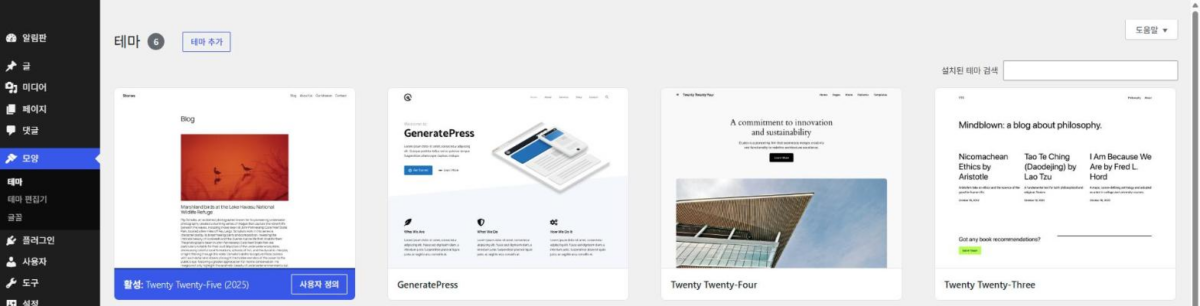
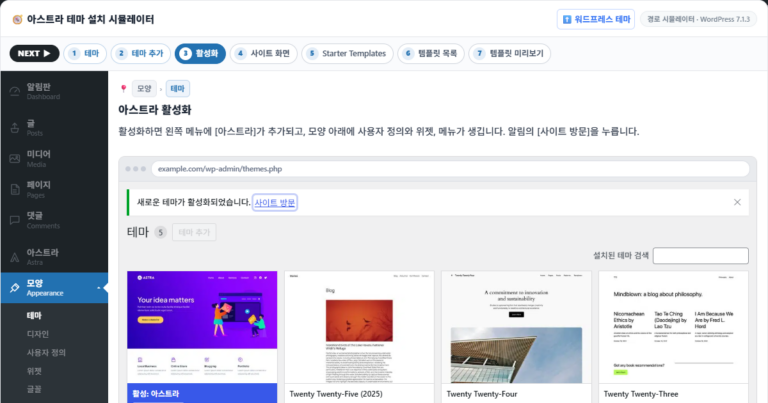
A theme sets the look of the blog's front page and post pages. After activating a theme in Appearance › Themes, a block theme lets you change the header, footer, colors and fonts with blocks in the Editor.
On a site with the default theme Twenty Twenty-Five active, the Appearance menu showed only three items: Themes, Editor and Fonts. Classic themes handle the same settings in Customize.
5️⃣ Installing and deleting WordPress plugins
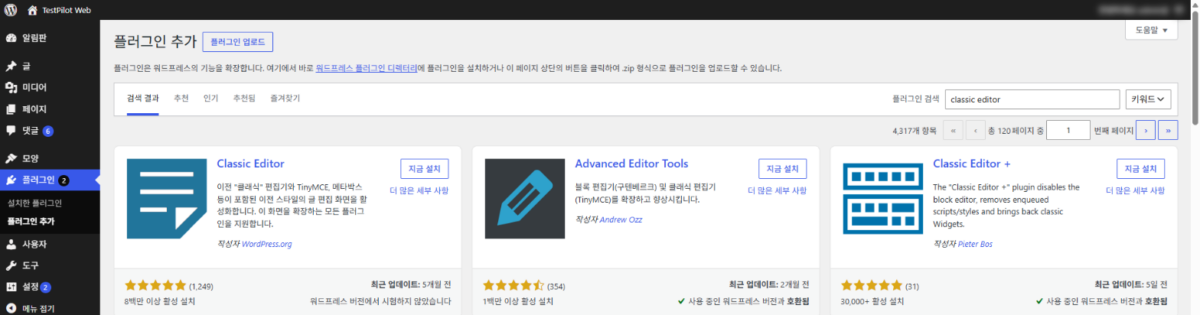
Plugins add features such as contact forms, SEO and backups to a blog. Search the official directory in Plugins › Add Plugin to install, then activate with the [Activate] button.
Entering [classic editor] in the search box gave 4,317 items, and each card had an [Install Now] button and WordPress version compatibility.
↳ Deactivating, then deleting, and cleaning up options and tables left in the database
🔄 Plugin updates
↳ Checking the changelog and updating one at a time or in bulk
6️⃣ WordPress updates and Site Health
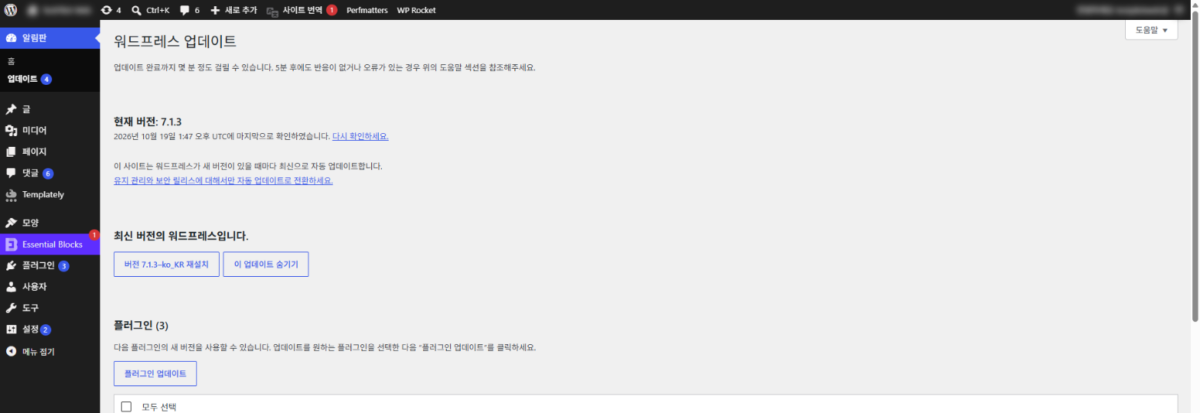
While running a blog, check new versions of core, plugins and themes in Dashboard › Updates. Back up before updating, and update one at a time in the order of core, plugins, themes and translations.
The top of the Updates screen shows the current version and the last check time, followed by a section of plugins with new versions.
Tools › Site Health checks items such as PHP version, HTTPS and update status and sorts them into critical issues and recommended improvements.
The site we checked had no critical issues and 3 recommended improvements: removing inactive plugins and removing inactive themes under security, and using a persistent object cache under performance.
For people writing with you, narrow permissions by creating accounts with the Editor, Author and Contributor roles instead of an administrator account.
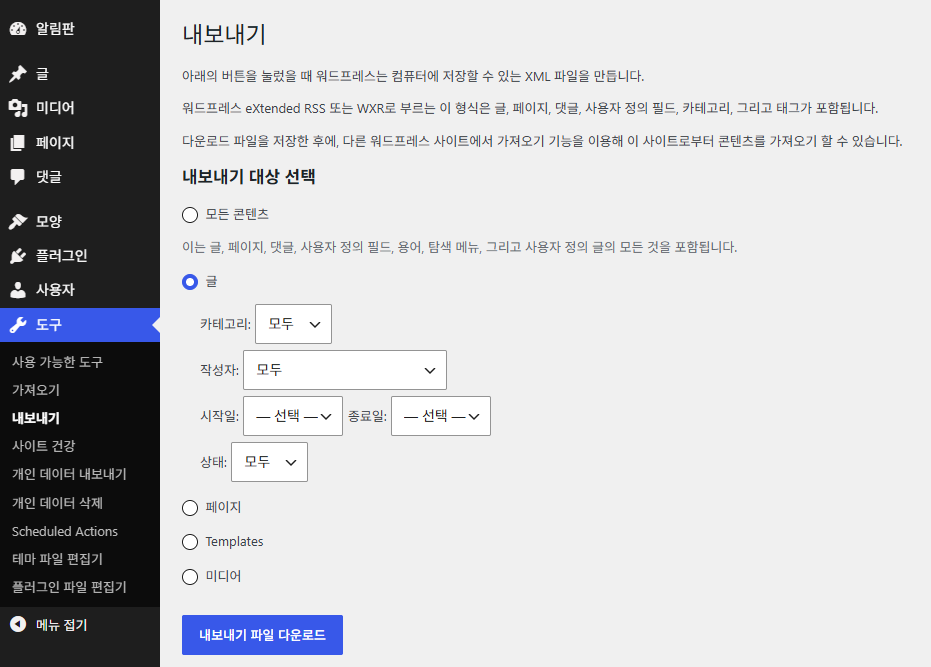
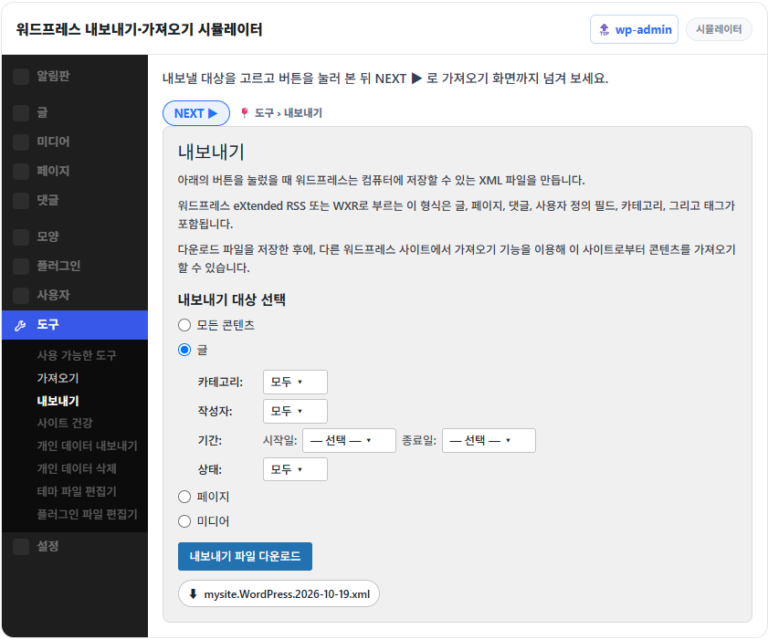
Posts and pages can be downloaded as one XML file in Tools › Export.
Choosing [Posts] lets you narrow the posts to export by category, author, date and status. This file does not include themes, plugins or settings screen values, so a full site backup is done separately.
🔢 FAQ & Recommended Content
Checking [Search engine visibility] on the installation screen or in Settings › Reading makes WordPress ask search engines not to index the site. In this state the Dashboard widget shows [Search engines discouraged], so uncheck it and save when making the blog public.
Categories are best created in Posts › Categories before your first post, so you can pick a category for each post right away. Menus are created in the theme Editor under [Navigation] for block themes, or in Appearance › Menus for classic themes.
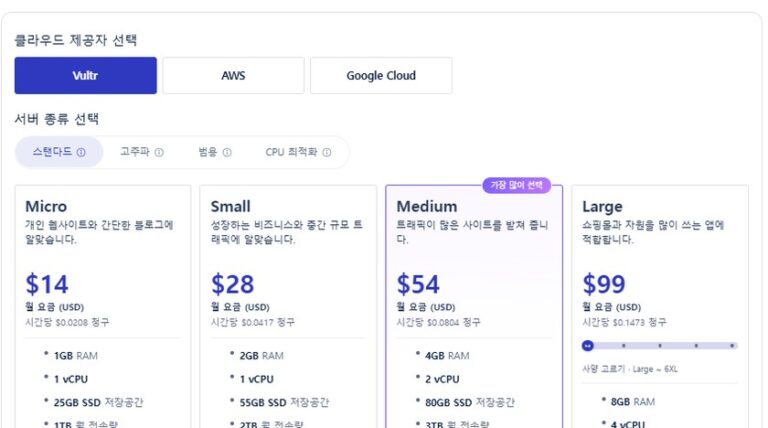
A domain is around $15 a year and hosting $4~35 a month, and you can start with free themes and plugins. For paid themes and plugins, check whether payment is one-time or a yearly subscription, then add them to your one-year budget.
🗺️WordPress Content Map29 posts · 1 tool
🗂️ WordPress
📝 Domain: Definition and Structure📝 Buying a Domain at Namecheap
ℹ️ Affiliate Disclosure This site's content contains affiliate links. When a visitor buys a product or service through one of them, the site receives a commission from the seller. The amount the buyer pays(it goes down during event discounts ↓)does not go up. Posted prices, discounts, and stock reflect the time of writing and may differ, so confirm with the seller before buying. Products are chosen and reviewed by our own standards, and commissions do not affect the order or content of reviews.